

Beam gives you dedicated texting numbers. Once it's connected, AI Sync uses those numbers as texting lines:
- Reps text from Beam in the dialer's Text tab and the Inbox.
- Automations text from Beam.
- Each lead keeps one number, and their replies come back to the right rep.
✅ Before you start#
- You're the account owner in AI Sync. Only the owner can connect Beam.
- You can sign in to your Beam workspace as its owner.
- The workspace has at least one active number assigned to it.
🔌 Connect (about 2 minutes)#
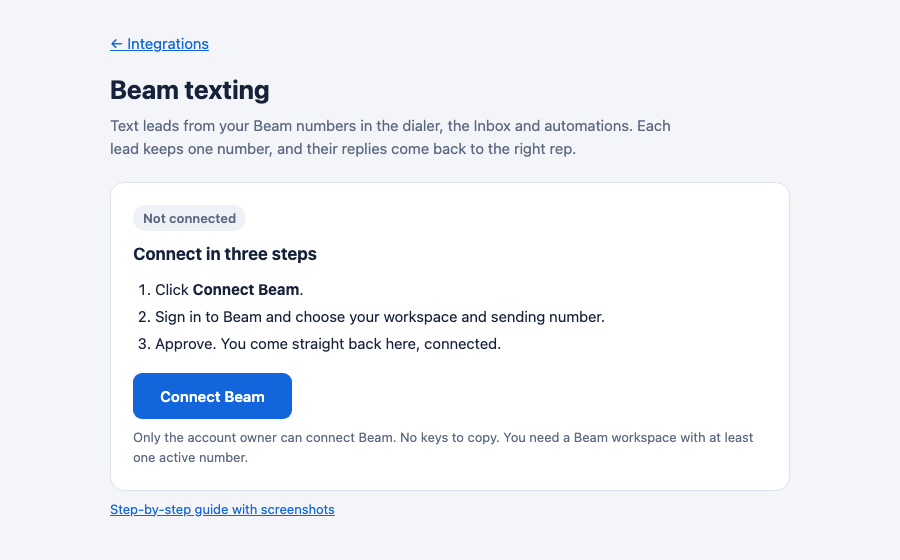
Open the Beam page
In AI Sync, go to Settings → Integrations, find the Beam card, and click Connect Beam. Then click the blue Connect Beam button.
Sign in to Beam and approve
Beam opens. Click Sign in, then choose your workspace and the number to send from. Click approve. Nothing connects until you approve.
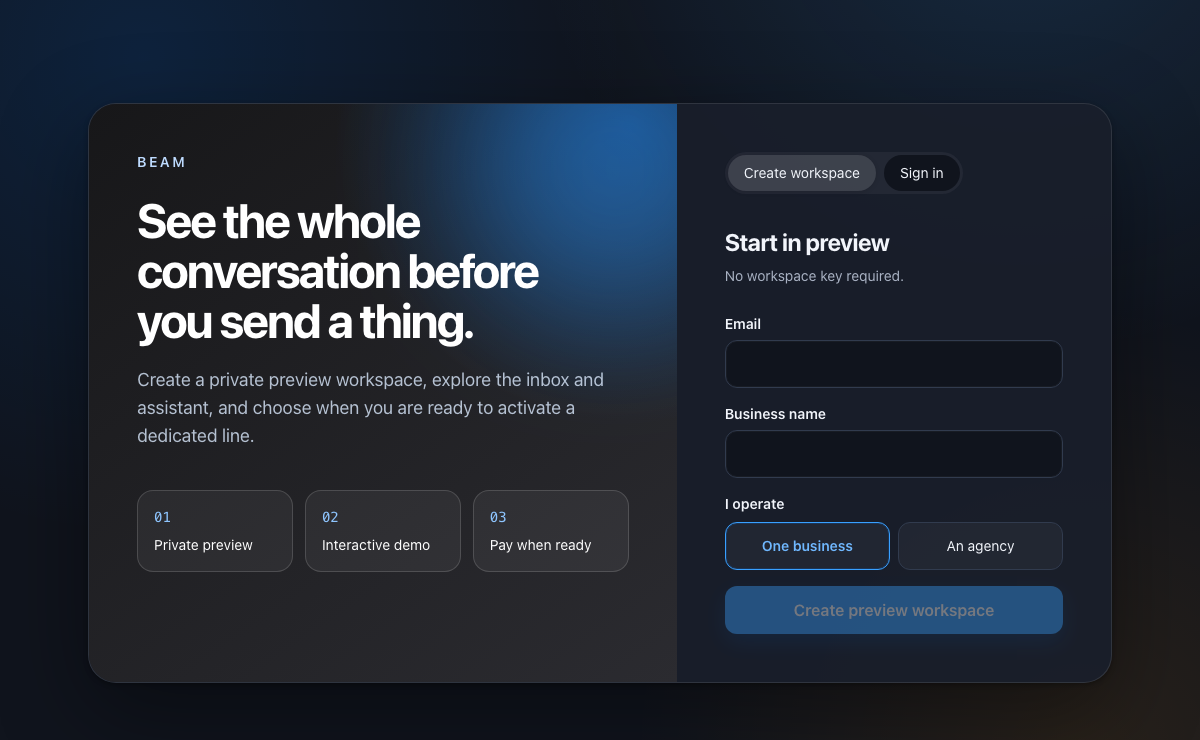
The link from AI Sync is only valid for 10 minutes. If it expires, click Connect Beam again.
Back in AI Sync: you're connected
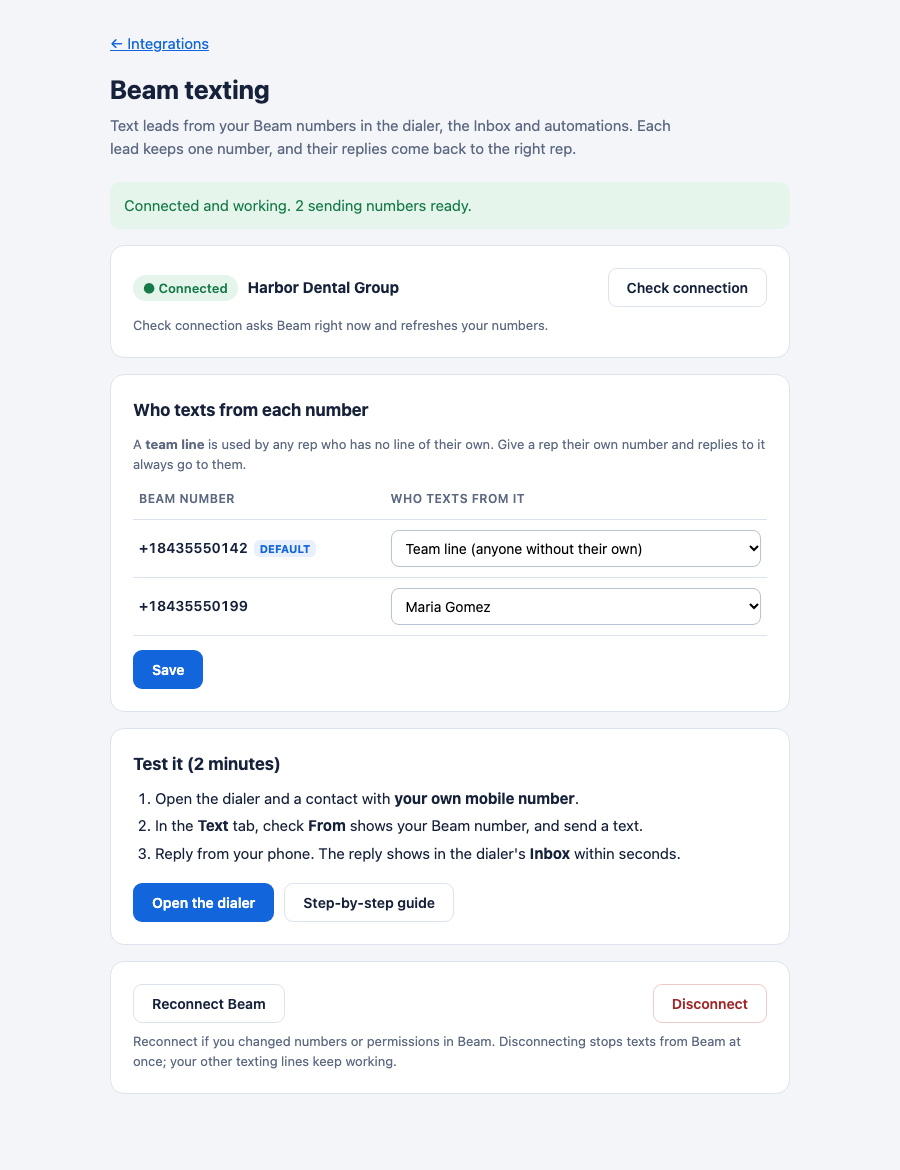
You land back on the Beam page with a green Connected badge and your workspace name. Click Check connection any time to confirm it's working. It asks Beam live and refreshes your numbers.
Choose who texts from each number
In Who texts from each number, for each Beam number pick:
- A rep. It becomes their own line. Leads save a real person's number, and replies always go to that rep.
- Team line. Any rep without a line of their own texts from it.
Click Save.
🧪 Test it (2 minutes, every new client)#
Text your own phone
Open the dialer, pick a contact with your own mobile number, and open the Text tab. From should say Your Beam line or Beam Team line. Send a text.
Reply
Reply from your phone.
Check the Inbox
Within seconds the reply shows in the dialer's Inbox, with an unread dot, for the right rep.
Passed? Beam is live for this client. The reply didn't show up? Click Check connection on the Beam page, then see the fixes below.
⚙️ How it works#
| Situation | Number used |
|---|---|
| Lead was texted before | The same number as last time, always |
| New lead, rep has their own line | The rep's line (Beam or Twilio) |
| New lead, rep has no line | Beam's default number, then other Beam team lines, then Twilio team lines |
| Automation after a disposition | Same rules, for the rep who saved the disposition |
| Rep picks a number in From | That number, and it becomes the lead's number from then on |
Replies go to the rep who owns the number, else the last rep who texted or called the lead. Full rules: Texting lines.
Leads already texted from a Twilio number stay on it. That's on purpose: their number never changes under them. To move a lead to Beam, pick the Beam line in From once.
Disconnecting stops Beam texts at once. Reps fall back to your other texting lines, and nobody is left unable to text if you have one.
Contacts marked Do Not Text are never texted, from Beam or anywhere else.
📋 SOP: onboarding a client onto Beam#
Copy this into your onboarding checklist.
- ☐ Client has a Beam workspace with at least one active, assigned number.
- ☐ Client's account owner is signed in to AI Sync.
- ☐ Settings → Integrations → Beam → Connect Beam, then sign in and approve.
- ☐ Beam page shows Connected. Click Check connection and see a green result.
- ☐ Who texts from each number is set and saved.
- ☐ Two-minute test passed: the text arrived, the reply showed in the Inbox for the right rep.
- ☐ A second text went from the same number.
- ☐ Tell the reps: "Your texts now go from your Beam line. Replies land in your Inbox."
🧯 If something is off#
"Could not verify Beam"
AI Sync couldn't confirm the connection. Check that:
- your Beam workspace has an active number assigned to it;
- you approved Read, Send, Automation and Webhooks.
Then click Connect Beam again. Your previous settings are unchanged.
"Beam did not accept the connection just now"
Beam didn't answer, or refused the connection. Wait a minute and click Check connection again. If it keeps failing, click Reconnect Beam. Your connection is never switched off because of a temporary problem.
"Connected, but Beam has no active number"
Assign a number to the workspace in Beam, then click Check connection.
Texts still go from a Twilio number
That lead was texted from it before, so they keep it. Pick the Beam line in From once. For new leads, check the rep doesn't have a Twilio number of their own; theirs comes first.
"Connection expired. Start again from Integrations."
More than 10 minutes passed between clicking Connect and approving in Beam. Start again.
I don't see the Connect button
Only the account owner can connect Beam. Everyone else sees "Your account owner manages this connection".
🤖 With your AI assistant#
Ask "What number will a text to Jordan Lee go out from?" It shows the Beam line and why. See Texting & Inbox with your AI assistant.