

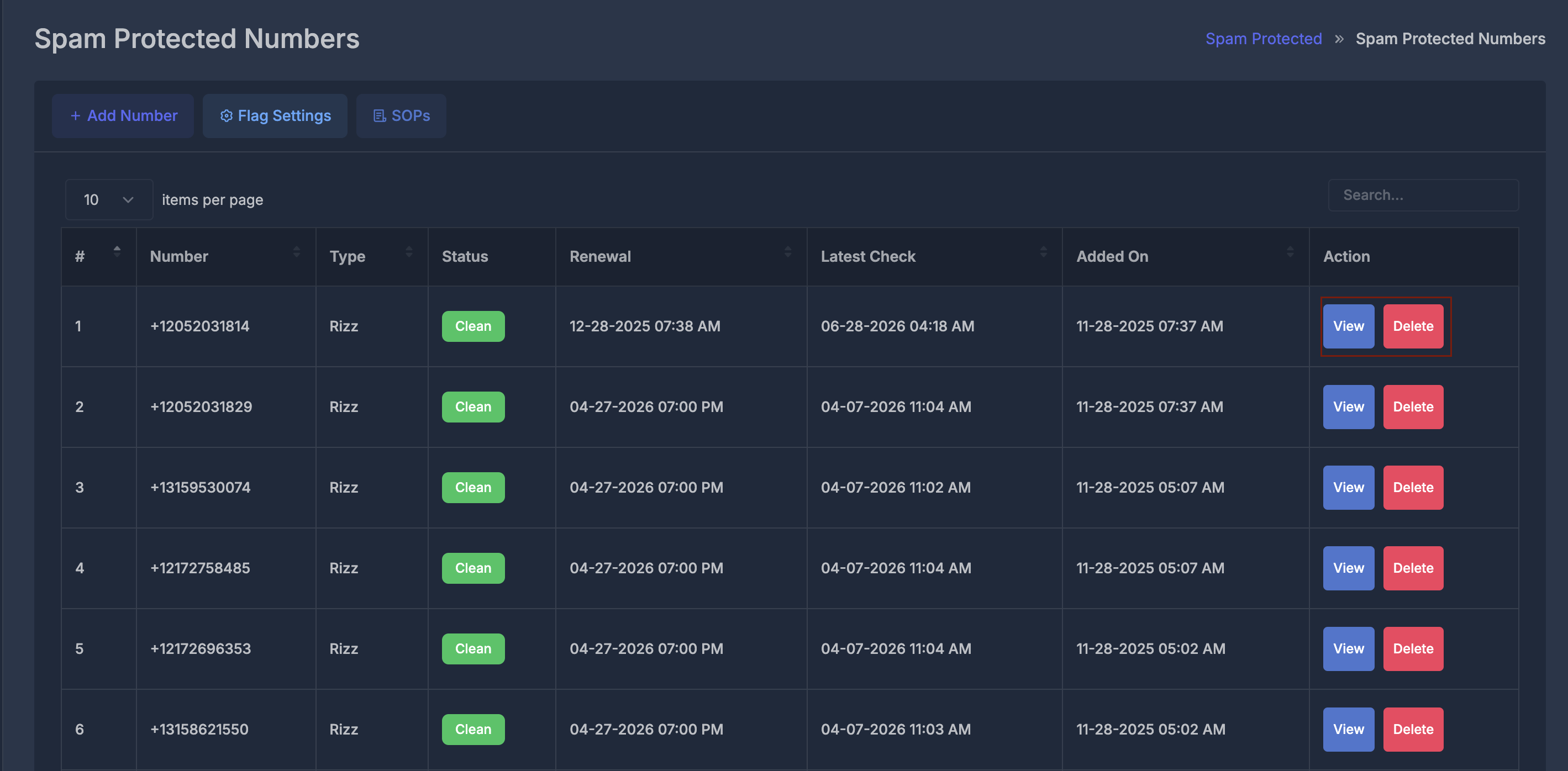
Spam Protected Numbers is where you see all phone numbers your organization is monitoring for spam-related issues across major carriers. It gives you one place to track status, renewal timing, and recent checks.
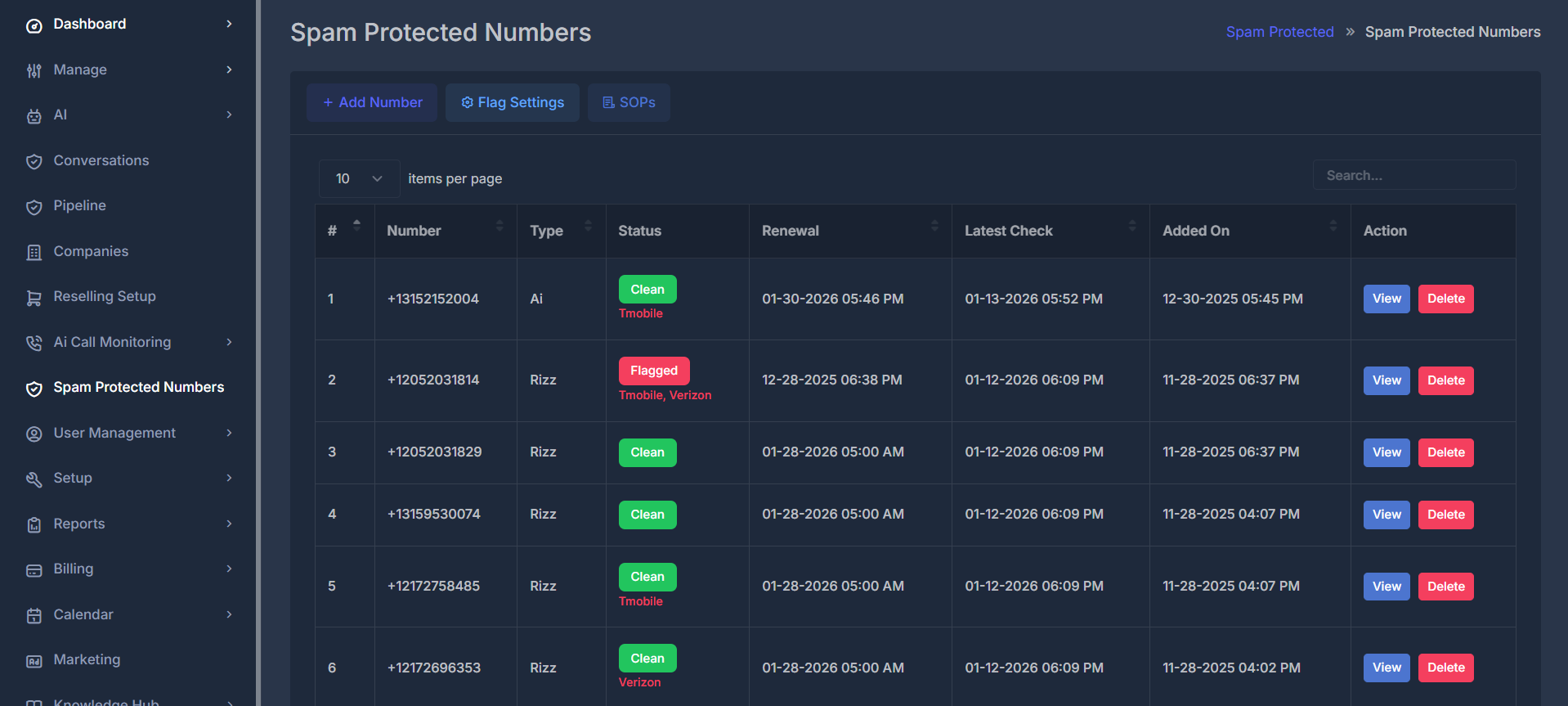
🧭 Breadcrumb
You may see a trail such as:
Spam Protected -> Spam Protected Numbers
⚡ Three actions#
- Add Number — open a form to enter a phone number manually and add it to monitoring.
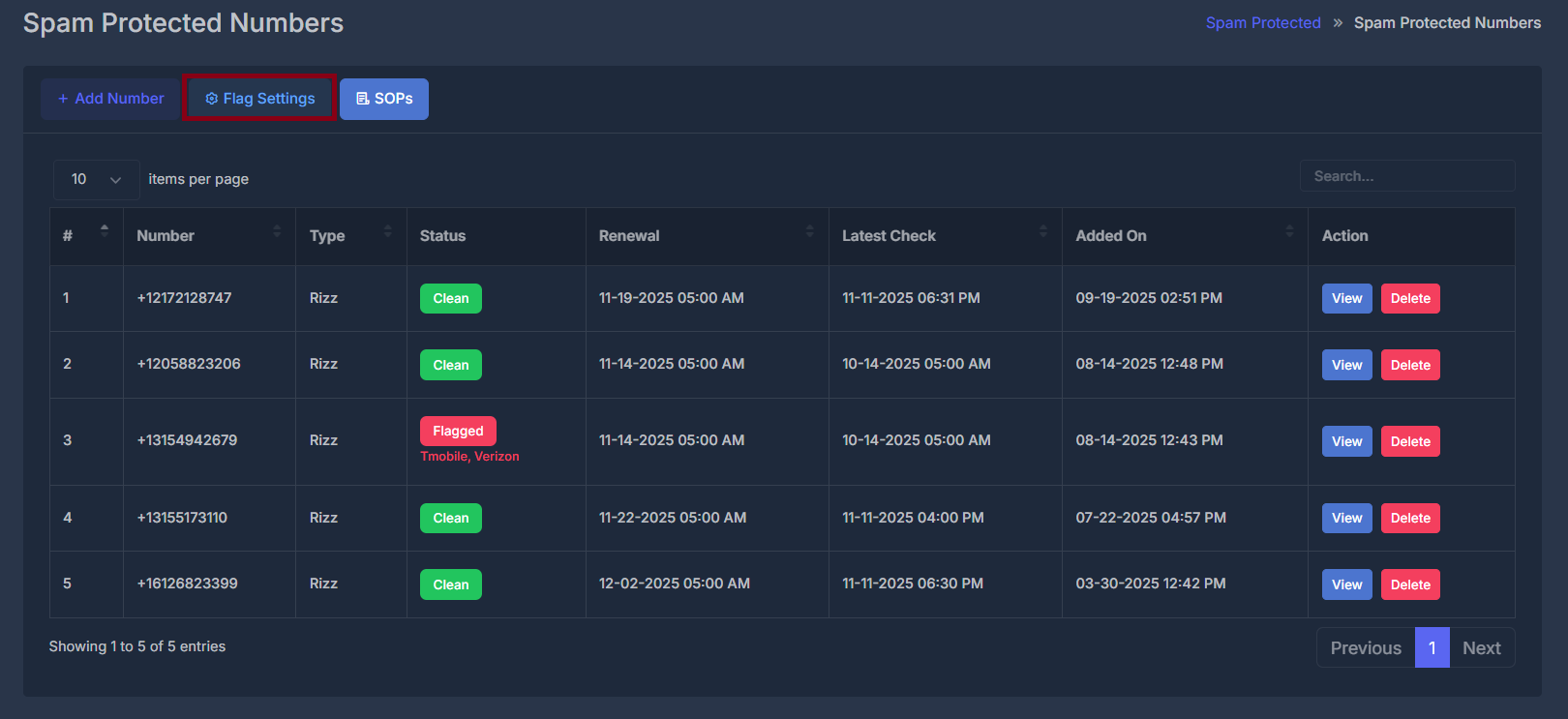
- Flag Settings — choose how strict “Flagged” should be (how many carriers must report issues).
- SOPs — open in-product standard procedure guide for this module.
📋 The main list#
Below the top actions, you see a table of protected numbers.
- Use Search to narrow rows.
- Change rows-per-page for long lists.
Each row is one monitored number.
| Column | What it means |
|---|---|
| # | Row number for reference. |
| Number | Phone number being monitored. |
| Type | Source type: Custom, Rizz, or Ai (display-cased). |
| Status | Monitoring result: In Progress, Clean, or Flagged. |
| Renewal | Monitoring renewal date/time (if available). |
| Latest Check | Most recent check/update time. |
| Added On | Date/time this number was added to protection. |
| Action | Row actions like View, Edit (custom only), Delete. |
For flagged rows, specific carrier names (such as T-Mobile or Verizon) may appear under status when available.
➕ Adding a number yourself (Add Number)#
- Click Add Number.
- Enter phone number.
- Click Save.
The number is added as Custom and usually starts as In Progress while checks run.

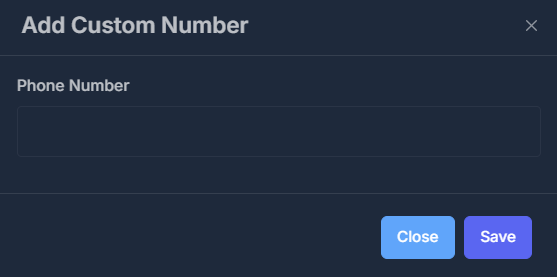
If add fails, your organization profile/setup for this service may be incomplete and support/admin action may be required.
🚩 Flag settings#
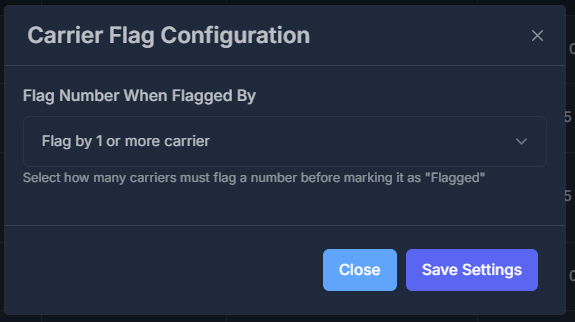
Use Flag Settings to control how sensitive the overall flagged result should be.
- Open Flag Settings.
- Choose threshold:
- 1+ carriers
- 2+ carriers (commonly default)
- 3+ carriers
- Save.
Lower threshold = faster/more sensitive flagging.
Higher threshold = less sensitive/fewer false positives.
📄 Standard procedures (SOPs)#
Click SOPs to open the built-in operational guide. It covers:
- why monitoring exists,
- how numbers are added,
- status definitions,
- flag sensitivity logic,
- detail view usage,
- monitoring frequency and status changes,
- troubleshooting and best practices.
Use SOPs for onboarding and for formal process checks.
🔍 View (details for one number)#
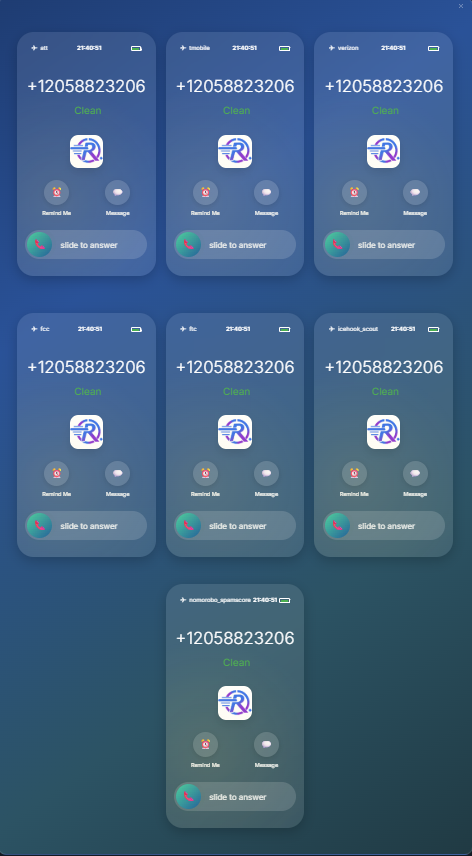
Click View on a row to open number details.
This page shows per-carrier status details in a visual layout. If no carrier details are available yet, the screen indicates that data is still unavailable.
This view is informational (read-only) for status interpretation.
✏️ Edit#
Edit is available only for Custom numbers added manually in this module.
- Click Edit.
- Update phone number.
- Save.
Numbers sourced from other modules (regular/AI lists) are managed in their original source modules, not edited here.
🗑️ Delete#
- Click Delete on a row.
- Confirm prompt.
After confirmation, the number is removed from this list and active monitoring for that entry stops.
ℹ️ Status meanings (short)#
- In Progress — checks are running or refreshing; review again later.
- Clean — no qualifying spam flag under current threshold rules.
- Flagged — threshold is met by carrier reports; review usage practices and remediation process.